What is protected
Vinera Protect backs up Exchange Online mail, contacts and calendars, OneDrive files, SharePoint document libraries, and Teams files, channel messages and chats. This page lists what each backup includes, what it leaves out, and what you can do with the data afterwards.
At a glance
| Workload | Backed up | Not backed up | What you can do with it |
|---|---|---|---|
| Exchange Online | Email in user mailboxes, with the folder structure; contacts; calendar events | Tasks; shared mailboxes; public folders | Restore single items, folders or a whole mailbox. Download email as .eml, contacts as .vcf, events as .ics. Export a mailbox as .pst or .zip. |
| OneDrive | Files and folders in each user's OneDrive | File version history | Restore files and folders. Export as .zip. |
| SharePoint | Files and folders in document libraries, with their sharing permissions | Lists and list items; site pages; file version history and custom columns; site settings | Restore files, folders or all of a site's files. Export as .zip. |
| Teams and groups | Files in the team or group document library; messages in standard channels; Teams chats (1:1 and group) | Writing channel messages back to Teams; private and shared channels | Restore files. View channel messages and download them as .json. Chats are kept in the backup. |
Every restore stays inside the Microsoft 365 tenant the data came from. Restoring into a different tenant is not supported.
Exchange Online
Each backup copies the email, contacts and calendar events in every user mailbox in scope. Email is copied folder by folder, so a restore puts messages back where they were.
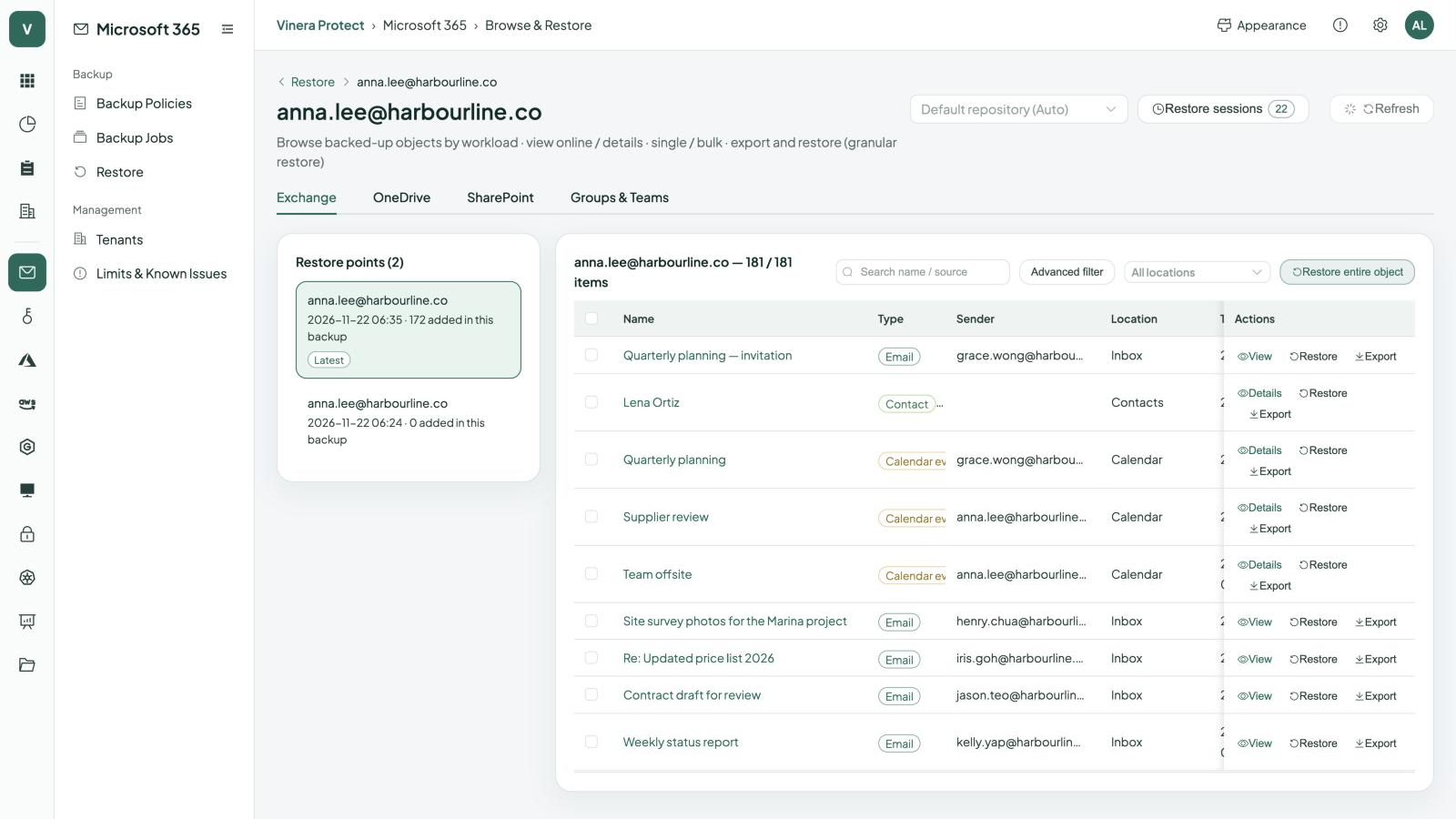
When you browse a restore point, contacts and calendar events are listed next to email. You can download a
contact as .vcf or an event as .ics, or restore them one by one or in bulk. A whole-mailbox restore
without mail filters brings back contacts and calendar too.
A policy that backs up the entire organization lists users again at the start of every run, so new employees are included from their first run onwards.
You can restore one email, selected folders or a whole mailbox, to its original place, to a new folder, or to another mailbox in the same tenant. See Browse and restore.
Not backed up
- Tasks (Microsoft To Do).
- Shared mailboxes. To protect their content, move it into a user mailbox that a policy covers.
- Public folders. Microsoft Graph has no interface for public folders. Use Microsoft's own retention policies for them.
OneDrive
Each backup copies the files and folders in a user's OneDrive as they are at that moment. To go back to older content, pick an older restore point.
Microsoft Graph can take a while to show a newly created OneDrive (about 20 minutes in our tests). Until it does, that OneDrive is skipped and the run finishes as Success (some skipped). The next run picks it up.
Not backed up
- File version history. Each backup saves the current version of each file.
SharePoint
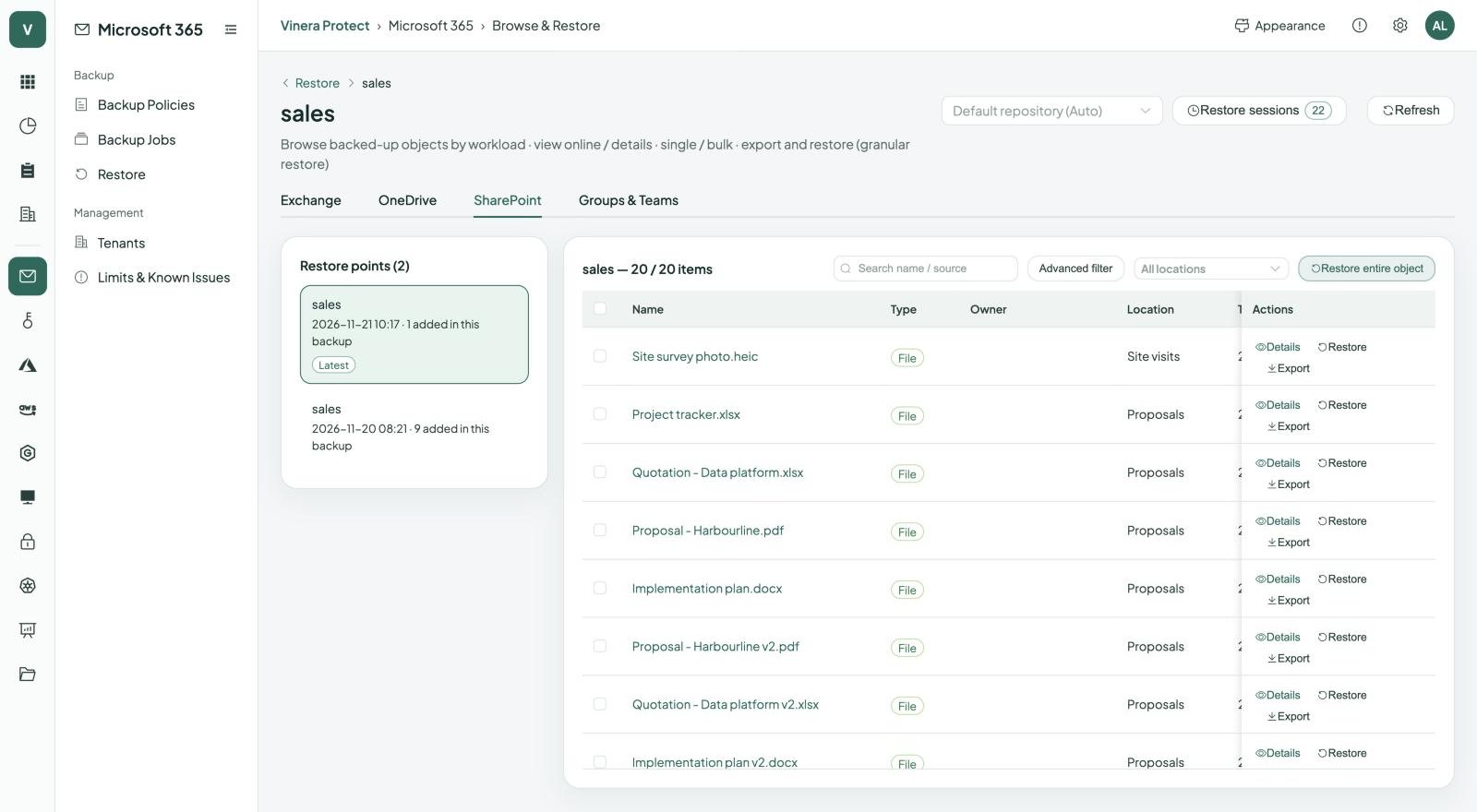
For every site in scope, including Microsoft 365 group and team sites, each backup copies the files and folders in all document libraries, with their sharing permissions. You can also choose to include subsites. When you restore a file, its sharing permissions come back with it.
Not backed up
- Lists and list items, including custom lists, task lists, calendars and issue trackers. Protect them with the SharePoint recycle bin or Microsoft's retention policies.
- Site pages and web parts, such as the home page and news posts.
- File version history. Each backup saves the latest version of a file. Versions created and replaced between two backups can't be recovered.
- Custom columns. Values such as "Contract number" or "Status", and the library's column definitions, views and content types. After a restore these columns are empty.
- Site settings, such as members and permission groups, navigation and themes. A deleted site is not recreated: create the site again in the SharePoint admin center, then restore the files into it with Restore to another site.
Teams and Microsoft 365 groups
A team or group backup copies the files in its document library and the messages in its standard channels.
You can restore the team's files to their original place or to a new folder. Channel messages can be opened
in the browser, with their replies, and downloaded as .json.
Backing up channel messages needs the ChannelMessage.Read.All permission.
Get started lists every permission.
Teams chats
Add Teams chats to a policy to back up users' 1:1 and group chats. This needs the optional
Chat.Read.All permission. Chats are kept in the backup only: they can't be browsed, downloaded or restored.
Limits
- Channel messages can't be written back to Teams. Microsoft Graph can't write messages into an existing channel. You can view and download them, but a restore brings back the team's files only.
- Private and shared channels are not covered.
- Team settings, channels, tabs and members are not part of a restore.
What applies to every workload
| Schedule | Every 1 to 168 hours (24 by default), or manual only. See Backup policies. |
| Incremental | After the first backup, each run copies only what changed. |
| Retention | Keep restore points by age, by number, or both. The newest restore point of each object is always kept. See Retention. |
| Clean-up | Expired restore points are deleted after each policy run and in a daily check. |
| Downloads and exports | Single items as .eml, .vcf, .ics or .json. Mailboxes as .pst or .zip, files as .zip. Each export can be downloaded for 48 hours. See Export and download. |
| Same tenant only | Restores go back into the tenant the data came from. |