Backup policies
A backup policy decides what is backed up, how often, and how long restore points are kept. Create one under Microsoft 365 › Backup Policies › New Backup Policy. You can have several policies, for example a daily one for everyone and a more frequent one for a few key mailboxes.
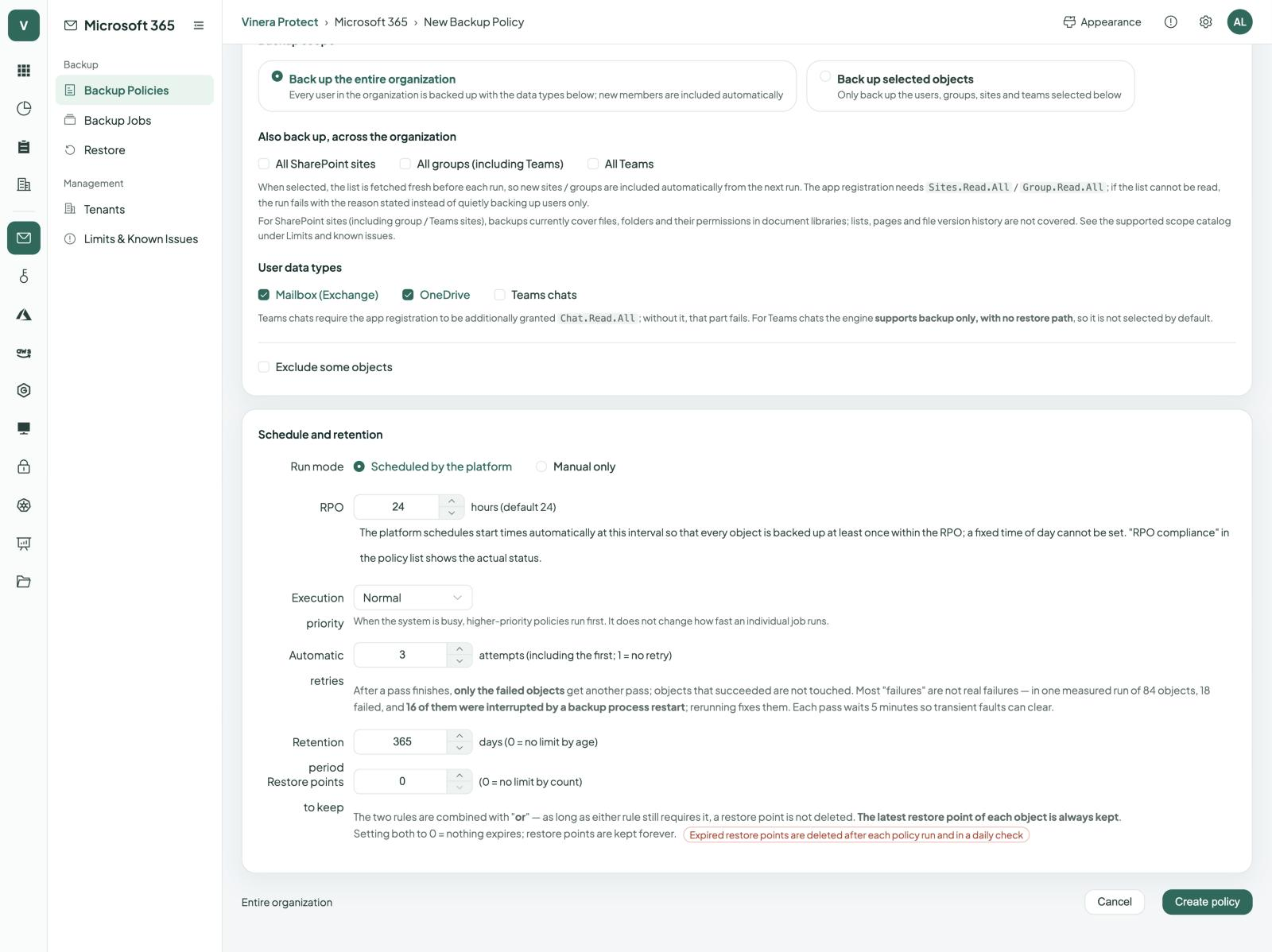
Backup scope
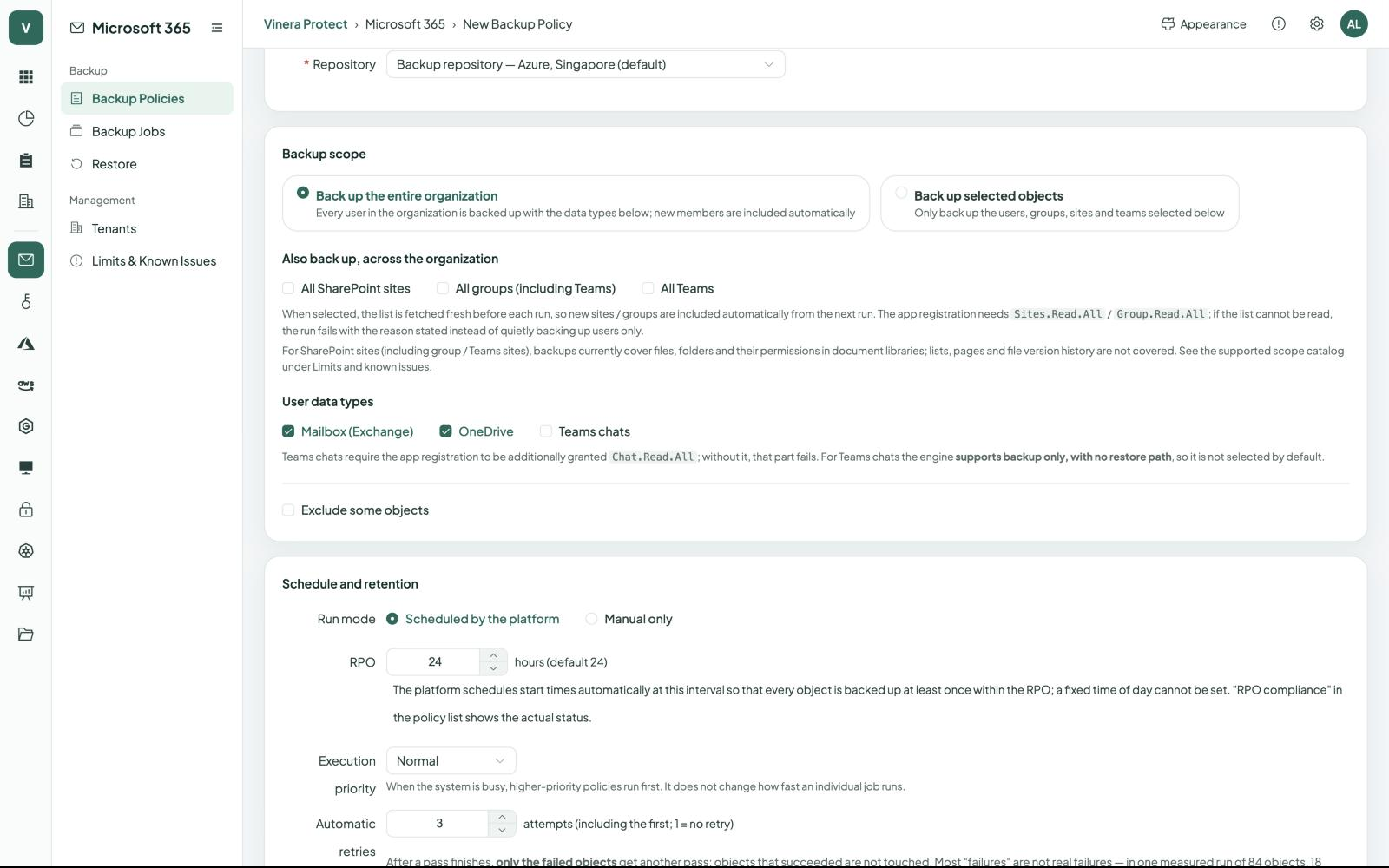
Choose one of two scopes:
- Back up the entire organization. Every user is backed up with the data types you pick. New members are included automatically, because the user list is fetched again at the start of every run.
- Back up selected objects. Only the users, groups, sites and teams you pick.
With the entire organization you can also tick, under Also back up, across the organization:
- All SharePoint sites
- All groups (including Teams)
- All Teams
These lists are fetched fresh before each run, so new sites and groups are included from the next run. If the list can't be read (for example a permission is missing), the run fails with the reason stated, instead of quietly backing up users only.
User data types
- Mailbox (Exchange): email, contacts and calendar events.
- OneDrive: files and folders.
- Teams chats: users' 1:1 and group chats. Needs the optional
Chat.Read.Allpermission and is kept in the backup only (no restore). Not selected by default.
Exclusions
Tick Exclude some objects to leave out specific users, groups, sites or teams, for example test accounts or a departed employee's mailbox that is preserved elsewhere.
Schedule
| Setting | What it does |
|---|---|
| Run mode | Scheduled by the platform or Manual only. |
| RPO | 1 to 168 hours, default 24. Vinera schedules start times automatically so that every object is backed up at least once within this interval. A fixed time of day can't be set. RPO compliance in the policy list shows the actual status. |
| Execution priority | When the system is busy, higher-priority policies run first. It does not change how fast an individual job runs. |
| Automatic retries | Number of attempts, including the first (1 = no retry). After a pass finishes, only the objects that failed get another pass; objects that succeeded are not touched. Each pass waits 5 minutes so transient faults can clear. |
The first backup of an object copies everything. Every run after that copies only what changed.
Retention
Each policy also sets how long restore points are kept. See Retention.
Watching runs
Every run appears under Backup Jobs with its status, the objects it covered and any that failed or were skipped, with the reason. A run where some objects were skipped for a known reason (for example a OneDrive that Microsoft hasn't made available yet) finishes as Success (some skipped).
Deleting a policy
Deleting a policy stops its schedule and removes it from the list. Backed-up data is not deleted with it: each restore point stays available under Restore until it expires.