Browse and restore
Go to Microsoft 365 › Restore. Pick a workload tab (Exchange, OneDrive, SharePoint, Groups & Teams), then select an object to browse its restore points.
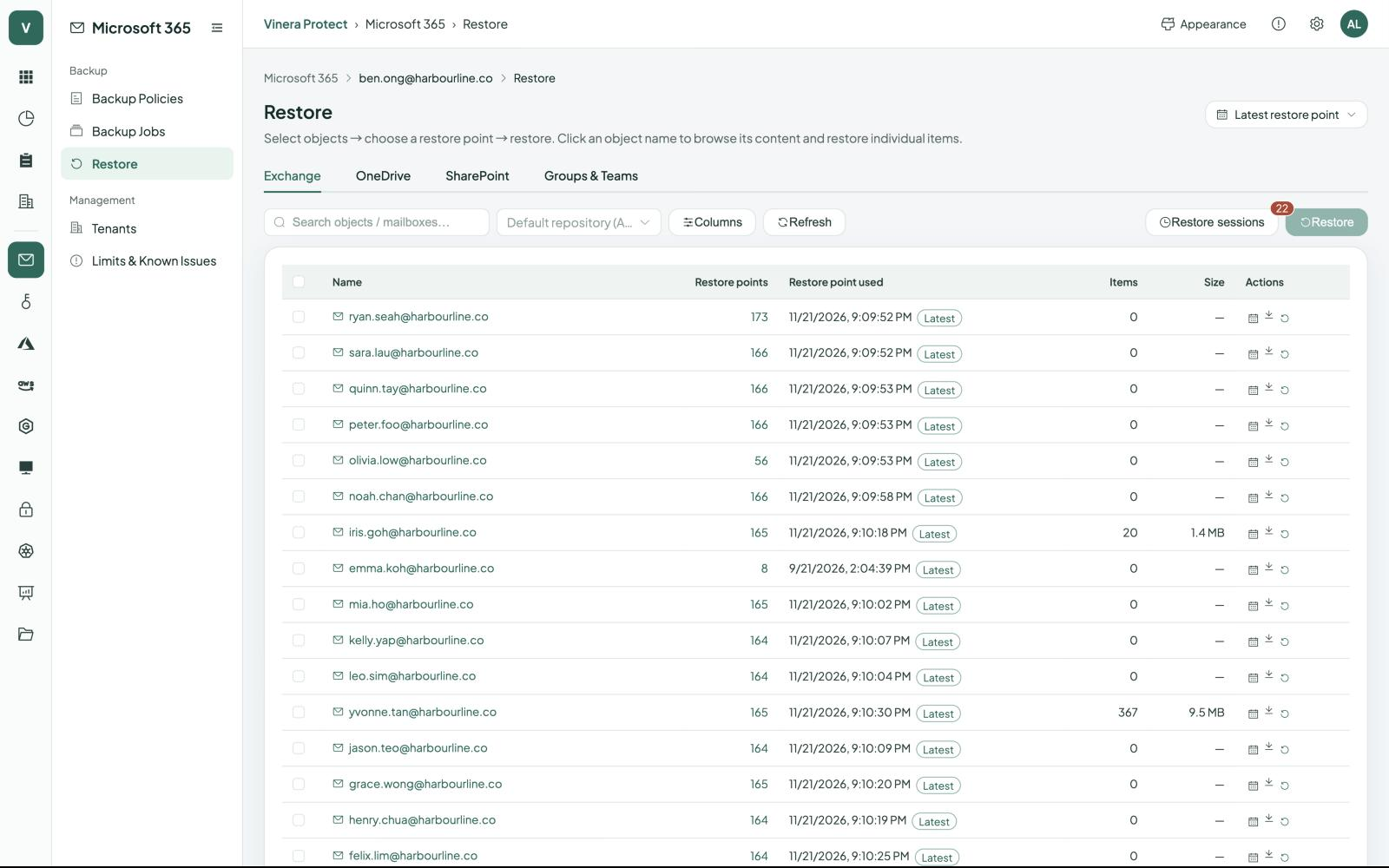
Browse a restore point
- Select an object name, for example a mailbox, to open it.
- On the left, pick a restore point. The newest one is marked Latest.
- On the right, browse the items. Use the search box, Advanced filter and the location filter to narrow the list.
- For each item you can View or open Details, Restore, or Export.
You can select several items and restore or export them together, or use Restore entire object to restore everything in the restore point.
Restore options
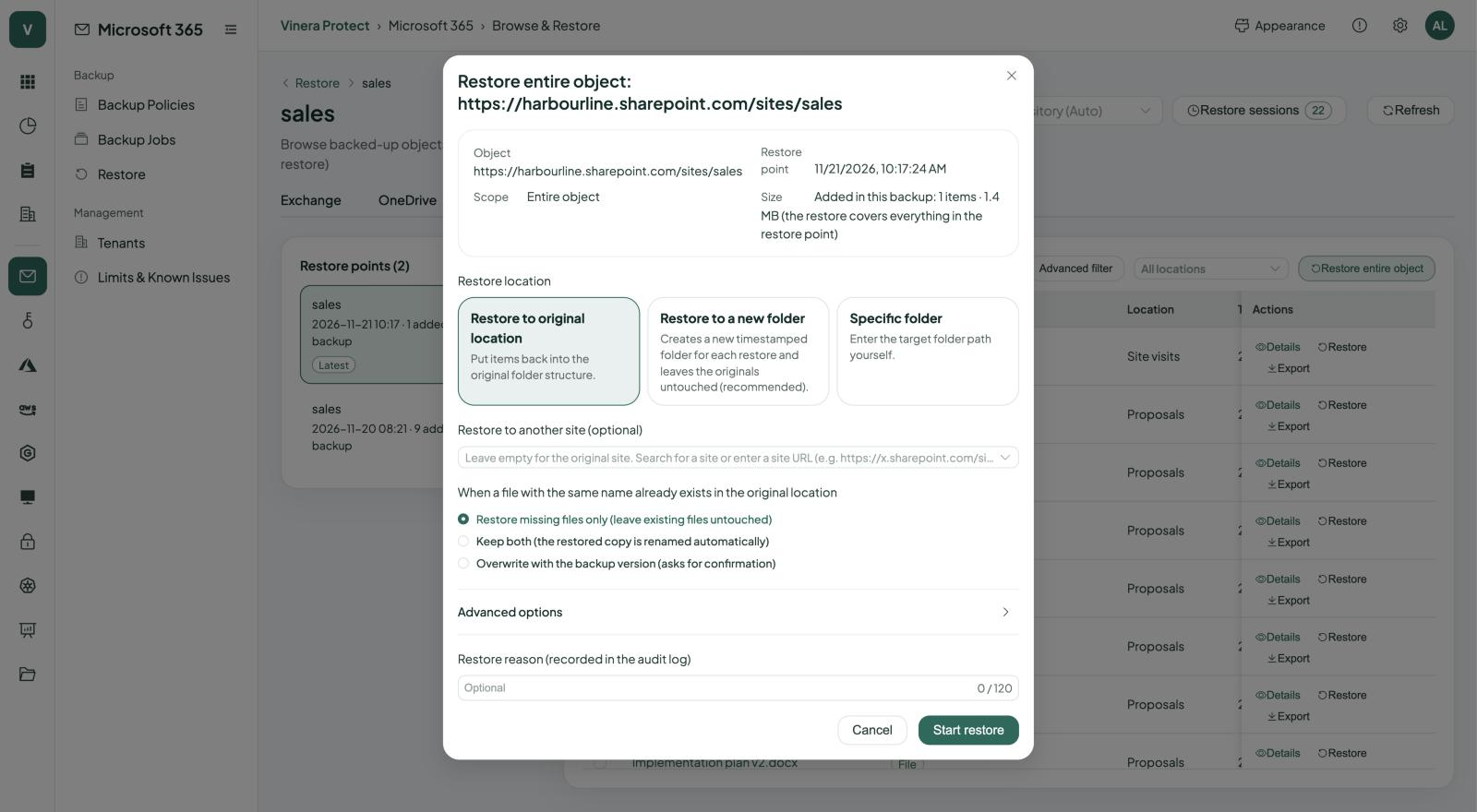
Restore location
- Restore to original location: put items back into the original folder structure.
- Restore to a new folder (recommended): creates a new timestamped folder for each restore and leaves the originals untouched.
- Specific folder: enter the target folder yourself. For Exchange this can be a path, for example
Recovered/2026-08. For OneDrive, SharePoint and Teams it is a single folder name; the original folder structure is created under it.
Restore to another user, mailbox or site
Optionally restore into a different object in the same tenant:
- Restore to another mailbox (Exchange)
- Restore to another user's OneDrive (OneDrive)
- Restore to another site (SharePoint). The target site must already exist; Vinera does not create sites. A newly created site can take a while to show up in search: paste its full URL instead.
Leave the field empty to restore to the original object. When you restore several objects at once, they all go back to their own original objects.
When an item with the same name already exists
- Restore missing files only (leave existing files untouched).
- Keep both: the restored copy is renamed automatically.
- Overwrite with the backup version: asks for confirmation. Changes made online after the backup are lost and can't be undone.
Advanced options
- Items to restore: restore missing items only, or missing and changed items.
- Folders to restore (Exchange): all folders, only selected folders, or all except selected folders.
- Restore only matching mail (Exchange): filter by sender and subject (case-insensitive "contains"). The dialog shows how many messages match before you start.
- Large restores (Exchange): restore the last n days of mail first, then the rest, so what people need most comes back first.
- Mark as unread (Exchange): marks restored mail as unread so users can see what was just restored. Available with Restore to a new folder or Specific folder.
Restore reason
Enter a Restore reason. It is recorded in the restore session and the audit log, so you know later why something was restored.
Follow a restore
Restores run on the server and finish even if you close the page. Follow them, and see any items that failed with the reason, under Restore sessions. You can stop a running restore; the current item finishes safely.
What can be restored
| Workload | Restore |
|---|---|
| Exchange Online | Email, folders, contacts, calendar events, or the whole mailbox. A whole-mailbox restore without mail filters brings back contacts and calendar too. |
| OneDrive | Files and folders. |
| SharePoint | Files and folders in document libraries, with their sharing permissions. |
| Teams and groups | Files. Channel messages can be viewed and downloaded, not written back. Chats can't be restored. |
Restores always go back into the tenant the data came from. See What is protected for everything that is not covered.